
Ask The Techspert: What’s New in Accessibility on iOS 26
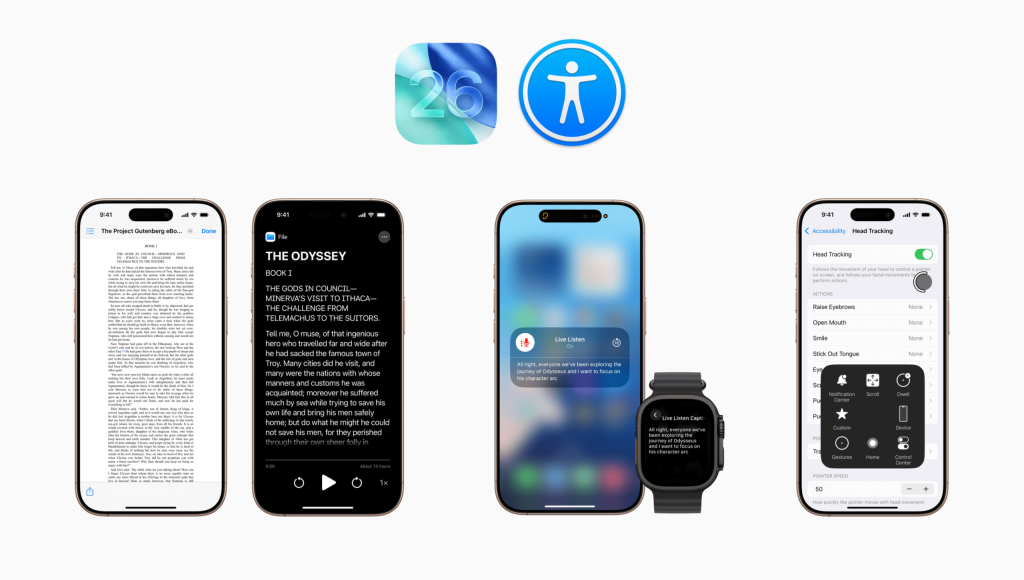
Apple’s latest iPhone software update, iOS 26, isn’t just about looks, but also about inclusion.
This year’s update brings some of the most impressive accessibility upgrades yet, helping more people use their devices comfortably and confidently. From clearer visuals to smarter captions and even a new “Liquid Glass” design you can fine-tune, iOS 26 gives users more control than ever.
In this article, we’ll look at some of the most helpful new accessibility features and how to turn them on. Let’s get started!
Taming the “Liquid Glass” Look
The most talked-about feature in iOS 26 is the new Liquid Glass interface. It creates a smooth, dynamic effect that makes menus and windows shimmer and blend with the wallpaper beneath, giving the impression of glass that flows like liquid. It’s stunning, but for some users, especially those sensitive to motion or glare, it can be too fluid.
If the shimmer or transparency feels distracting, here’s how to tone it down:
- Open Settings › Accessibility › Display & Text Size
- Turn on Reduce Transparency to add darker, more solid backgrounds behind menus and icons.
- Turn on Increase Contrast for sharper text and outlines.
- Open Settings › Accessibility › Motion
- Turn on Reduce Motion to minimize the “melting” or “floating” transitions of Liquid Glass.
Although there’s no full “off” switch for Liquid Glass, these adjustments make it calmer without losing the new design’s polish.
A Cleaner Way to Read
If cluttered layouts or tiny text make reading difficult, the new Accessibility Reader can help. It takes the text from any screen and presents it in a clean, easy-to-read format. In the reader, you can adjust the font size, spacing, and background color for comfort – or have the text read aloud. Best of all, it works across your entire iPhone, so you can open it from any app.
To use Accessibility Reader:
- Open Settings › Accessibility › Read & Speak › Accessibility Reader.
- Turn it on and explore options for font size, spacing, and background color.
- To launch it from any app, use the Accessibility Shortcut (triple-press the side button and select Accessibility Reader) or add the Accessibility Reader control to Control Center.
Live Captions on Apple Watch
Staying part of the conversation just got easier. The new Live Captions for Live Listen feature on Apple Watch builds on your iPhone’s ability to act as a remote microphone. As your iPhone picks up sound from a conversation, call, or video, your Apple Watch shows real-time captions of what’s being said – perfect for discreetly following along in noisy environments, during calls, or without needing to turn up the volume. Your Watch can also act as a remote control, letting you pause, resume, or rewind the Live Listen session with a quick tap.
To use this new iPhone-Watch combo accessibility feature, make sure your Apple Watch is running watchOS 26. You can find Apple’s step-by-step setup guide here.
Using Your iPhone Hands-free
New in iOS 26, Head Tracking lets you control your iPhone using gentle head movements and facial expressions. The front camera follows your motion and moves an on-screen pointer as you do. When you hold your head steady over an item, it’s selected – just like a tap.
To try it out:
Go to Settings › Accessibility › Head Tracking, then turn it on. From there, you can fine-tune options such as the pointer’s speed and sensitivity, or assign actions – like Open Menu or Camera – to facial expressions such as smiling or scrunching your nose for quicker control.
Pro Tip: For best results, keep your iPhone about 18 inches from your face in good lighting.
Extra Accessibility Features to Explore
iOS 26 includes many other accessibility updates designed to make your iPhone easier and more personal to use. Here are other highlights worth exploring:
- Braille Access: Turns your iPhone or iPad into a full braille device. You can connect a braille display or use on-screen braille input to read, type, and navigate entirely by touch.
- Accessibility Nutrition Labels: Found in the App Store, these labels show which accessibility features an app supports before you download it – such as VoiceOver, captions, or dynamic text.
- Setup Transfer for Accessibility: When setting up a new iPhone or iPad, your accessibility settings (like text size, contrast, or hearing options) now transfer automatically, saving time and ensuring a familiar experience from the start.
Want to learn more about iOS 26 or smartphones in general? Visit seniorplanet.org/smartphones to watch our four-part lecture series on iOS 26 and explore upcoming classes and resources on smartphones.
Got a tech question that just cannot wait? Join the Everything Tech and Ask a Tech Expert groups on the Senior Planet Community platform to ask any tech questions you might have and discuss technology trends with other like-minded individuals. You can also call our free Senior Planet Tech Hotline at 888-713-3495.
Your Turn
Have you tried any of the new accessibility features yet? Which settings made your iPhone or iPad easier to use? Share your answer in the comment section below.
 Techspert Jonathan is Senior Planet’s Sr. Digital Community Relations and Product Specialist and a former Senior Planet San Antonio technology trainer. He is also an iOS developer with a background in Information Systems and Cyber Security.
Have a tech question that’s got you stumped? Send your tech questions to Techspert Jonathan using THIS FORM. He’ll be tackling one question a month from readers.
The content on the Senior Planet website is intended strictly for general informational purposes and does not constitute an endorsement or warranty regarding privacy, security, app permissions, or changes in the app’s terms of service. Please scrutinize each app’s privacy policy, terms of use, data collection or other permissions before downloading or using the app.
Apple’s latest iPhone software update, iOS 26, isn’t just about looks, but also about inclusion.
This year’s update brings some of the most impressive accessibility upgrades yet, helping more people use their devices comfortably and confidently. From clearer visuals to smarter captions and even a new “Liquid Glass” design you can fine-tune, iOS 26 gives users more control than ever.
In this article, we’ll look at some of the most helpful new accessibility features and how to turn them on. Let’s get started!
Taming the “Liquid Glass” Look
The most talked-about feature in iOS 26 is the new Liquid Glass interface. It creates a smooth, dynamic effect that makes menus and windows shimmer and blend with the wallpaper beneath, giving the impression of glass that flows like liquid. It’s stunning, but for some users, especially those sensitive to motion or glare, it can be too fluid.
If the shimmer or transparency feels distracting, here’s how to tone it down:
- Open Settings › Accessibility › Display & Text Size
- Turn on Reduce Transparency to add darker, more solid backgrounds behind menus and icons.
- Turn on Increase Contrast for sharper text and outlines.
- Open Settings › Accessibility › Motion
- Turn on Reduce Motion to minimize the “melting” or “floating” transitions of Liquid Glass.
Although there’s no full “off” switch for Liquid Glass, these adjustments make it calmer without losing the new design’s polish.
A Cleaner Way to Read
If cluttered layouts or tiny text make reading difficult, the new Accessibility Reader can help. It takes the text from any screen and presents it in a clean, easy-to-read format. In the reader, you can adjust the font size, spacing, and background color for comfort – or have the text read aloud. Best of all, it works across your entire iPhone, so you can open it from any app.
To use Accessibility Reader:
- Open Settings › Accessibility › Read & Speak › Accessibility Reader.
- Turn it on and explore options for font size, spacing, and background color.
- To launch it from any app, use the Accessibility Shortcut (triple-press the side button and select Accessibility Reader) or add the Accessibility Reader control to Control Center.
Live Captions on Apple Watch
Staying part of the conversation just got easier. The new Live Captions for Live Listen feature on Apple Watch builds on your iPhone’s ability to act as a remote microphone. As your iPhone picks up sound from a conversation, call, or video, your Apple Watch shows real-time captions of what’s being said – perfect for discreetly following along in noisy environments, during calls, or without needing to turn up the volume. Your Watch can also act as a remote control, letting you pause, resume, or rewind the Live Listen session with a quick tap.
To use this new iPhone-Watch combo accessibility feature, make sure your Apple Watch is running watchOS 26. You can find Apple’s step-by-step setup guide here.
Using Your iPhone Hands-free
New in iOS 26, Head Tracking lets you control your iPhone using gentle head movements and facial expressions. The front camera follows your motion and moves an on-screen pointer as you do. When you hold your head steady over an item, it’s selected – just like a tap.
To try it out:
Go to Settings › Accessibility › Head Tracking, then turn it on. From there, you can fine-tune options such as the pointer’s speed and sensitivity, or assign actions – like Open Menu or Camera – to facial expressions such as smiling or scrunching your nose for quicker control.
Pro Tip: For best results, keep your iPhone about 18 inches from your face in good lighting.
Extra Accessibility Features to Explore
iOS 26 includes many other accessibility updates designed to make your iPhone easier and more personal to use. Here are other highlights worth exploring:
- Braille Access: Turns your iPhone or iPad into a full braille device. You can connect a braille display or use on-screen braille input to read, type, and navigate entirely by touch.
- Accessibility Nutrition Labels: Found in the App Store, these labels show which accessibility features an app supports before you download it – such as VoiceOver, captions, or dynamic text.
- Setup Transfer for Accessibility: When setting up a new iPhone or iPad, your accessibility settings (like text size, contrast, or hearing options) now transfer automatically, saving time and ensuring a familiar experience from the start.
Want to learn more about iOS 26 or smartphones in general? Visit seniorplanet.org/smartphones to watch our four-part lecture series on iOS 26 and explore upcoming classes and resources on smartphones.
Got a tech question that just cannot wait? Join the Everything Tech and Ask a Tech Expert groups on the Senior Planet Community platform to ask any tech questions you might have and discuss technology trends with other like-minded individuals. You can also call our free Senior Planet Tech Hotline at 888-713-3495.
Your Turn
Have you tried any of the new accessibility features yet? Which settings made your iPhone or iPad easier to use? Share your answer in the comment section below.
Techspert Jonathan is Senior Planet’s Sr. Digital Community Relations and Product Specialist and a former Senior Planet San Antonio technology trainer. He is also an iOS developer with a background in Information Systems and Cyber Security.
Have a tech question that’s got you stumped? Send your tech questions to Techspert Jonathan using THIS FORM. He’ll be tackling one question a month from readers.
The content on the Senior Planet website is intended strictly for general informational purposes and does not constitute an endorsement or warranty regarding privacy, security, app permissions, or changes in the app’s terms of service. Please scrutinize each app’s privacy policy, terms of use, data collection or other permissions before downloading or using the app.